Adding a New Dataset
Authorized users (e.g., Organization Admins or Creators) can add new datasets to the portal through the Dataset creation interface.
Step 1: Access the Create Dataset Screen
You can access the Create Dataset screen in two ways:
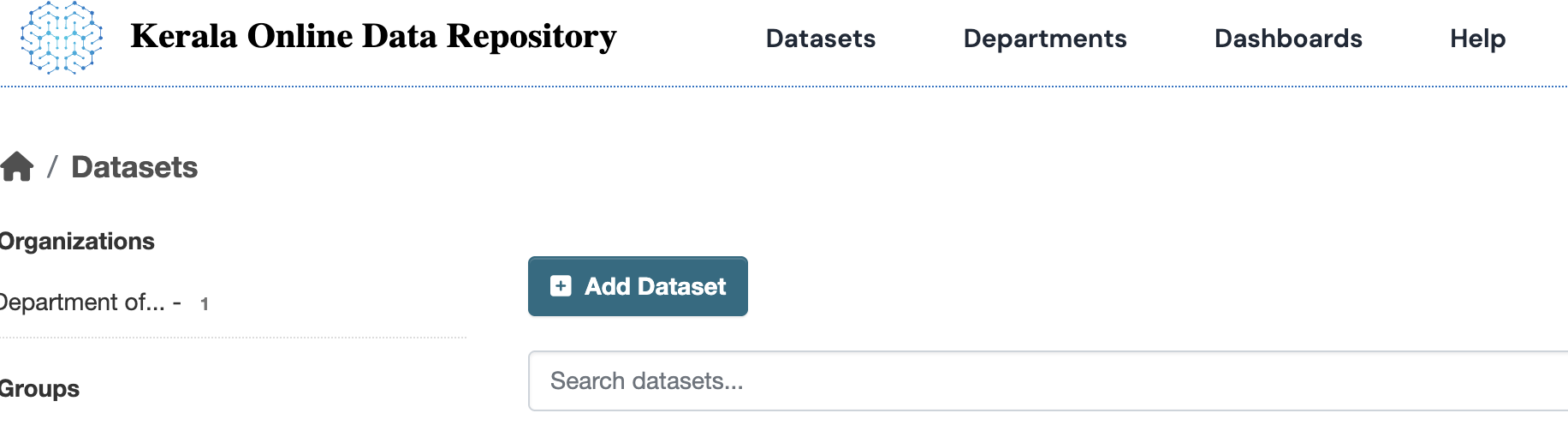
- Click on the Datasets link in the top navigation bar. Then click the Add Dataset button above the search box.
-
Click on the Organizations link in the top navigation bar.
Select the organization that should own the dataset.
If you are an admin/creator of that organization, click the Add Dataset button.
Step 2: Enter Dataset Information
Fill in the required metadata about your dataset. The actual data file will be added in a later step.
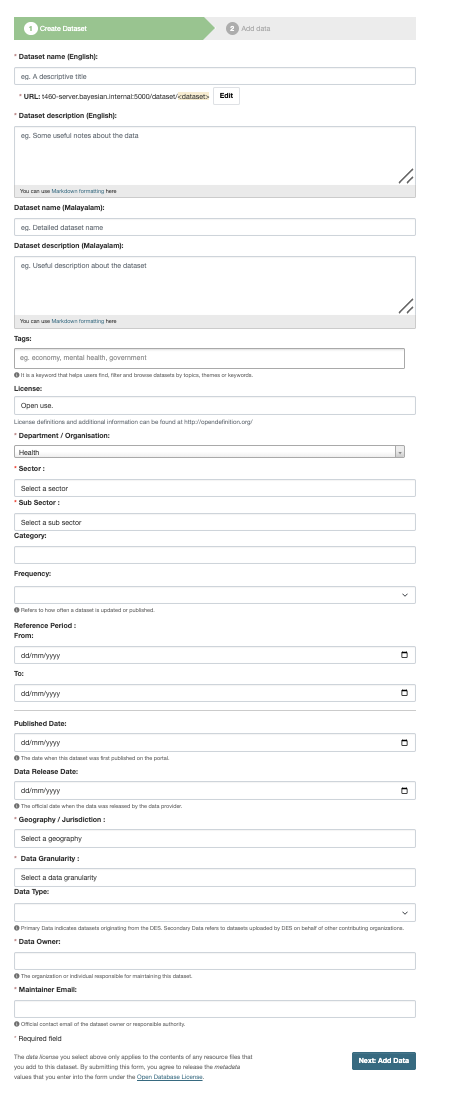
For detailed explanation of each metadata field, see Dataset Metadata Fields .
Step 3: Proceed to Add Data
After filling in the dataset information, click the Next: Add Data button.
Step 4: Add Data (Resources)
You will now see the Add Data screen. This is where you add one or more resources (files or links that contain the actual dataset).
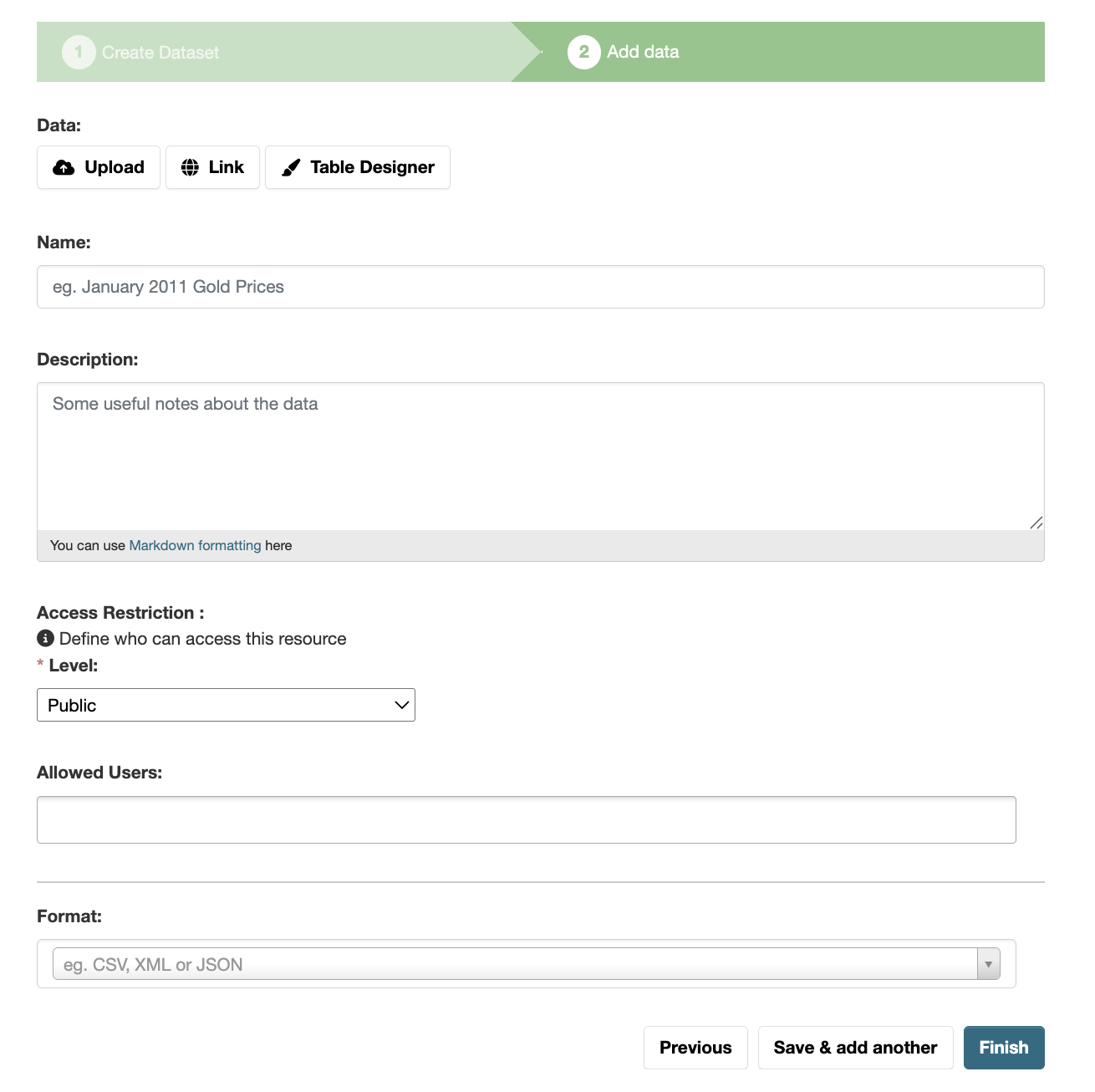
For detailed explanation of each metadata field, see Adding Data (Resource Section) in the Dataset Metadata Fields .
Step 5: Add More Resources (Optional)
If your dataset contains multiple files or links, click Save & Add Another to add more resources.
Step 6: Finish Dataset Creation
Once all resources have been added, click the Finish button.
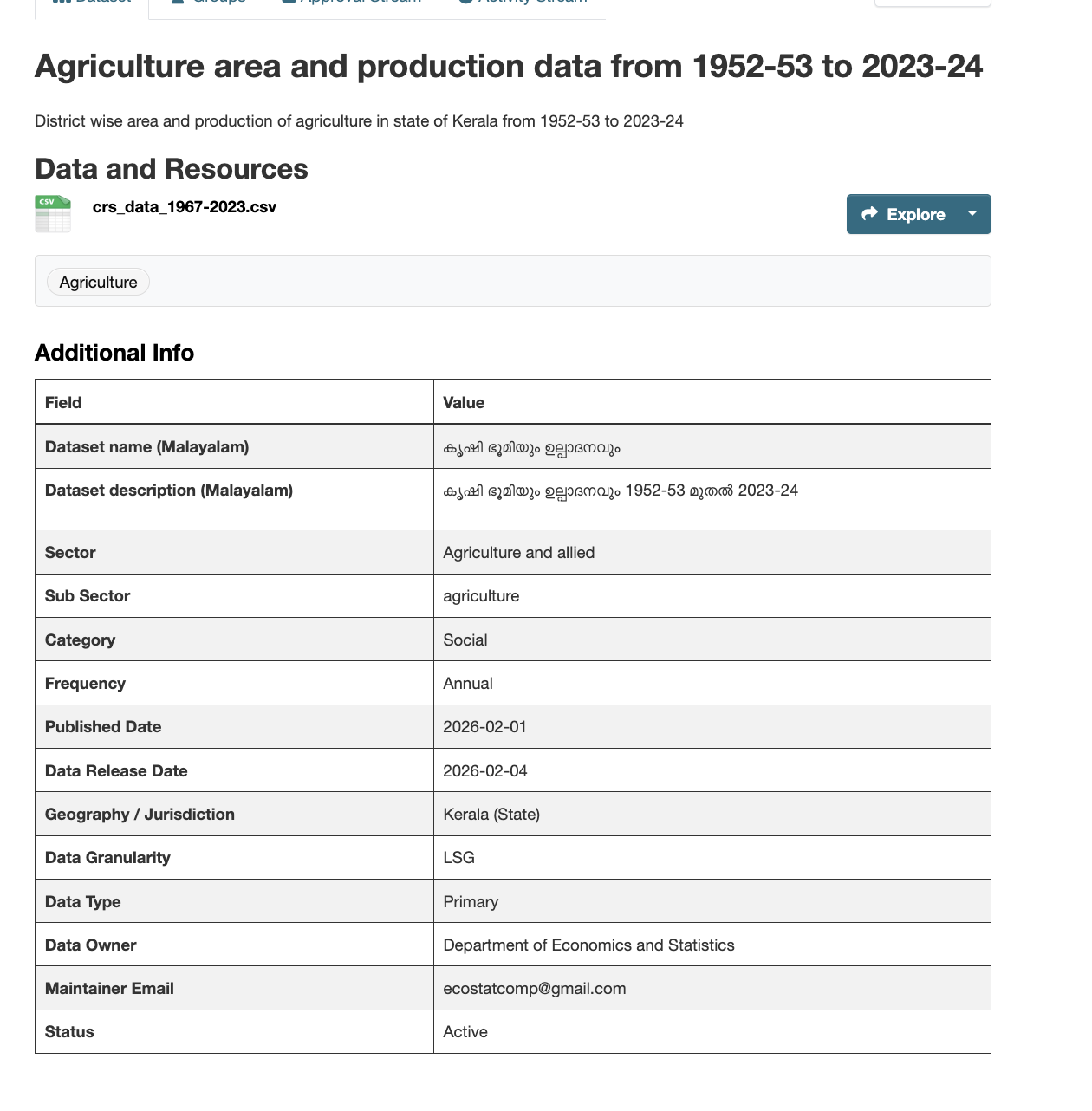
CKAN will create the dataset and display the dataset page.
Finding Your Dataset
You can find your dataset by typing its title or relevant keywords into the search box available on any page of the portal.