Dataset Creation
This guide explains how to correctly fill each field while creating a dataset. All mandatory fields marked with (*) must be completed before proceeding. Ensure that the information entered is accurate, complete, and properly classified.
Basic Information
Dataset Name (English) *
Enter a clear and descriptive title for the dataset. This name will be visible publicly and used in search results.
Example: “District-wise Population Statistics 2024”.
URL (Slug)
The system automatically generates a unique URL based on the dataset name.
You may edit it if required. This becomes the permanent link to the dataset.
Dataset Description (English) *
Provide a detailed explanation of what the dataset contains, including coverage area, time period, and purpose.
Dataset Name (Malayalam)
Optional field to provide the dataset title in Malayalam.
Dataset Description (Malayalam)
Optional field to provide the dataset description in Malayalam.
Tags
Enter relevant keywords separated by commas (example: health, vaccination, district).
Tags help users search and filter datasets.
License *
Select the appropriate license that defines how the data can be used.
Available options include:
- Open Use
- Open Use (Must provide source)
- Open Use (Commercial use requires permission)
- Open Use (Must provide source and Commercial use requires permission)
In most cases, select Open Use (Must provide source) unless otherwise instructed.
Department *
Ensure the correct department is selected. This identifies the publishing authority.
Classification
Sector *
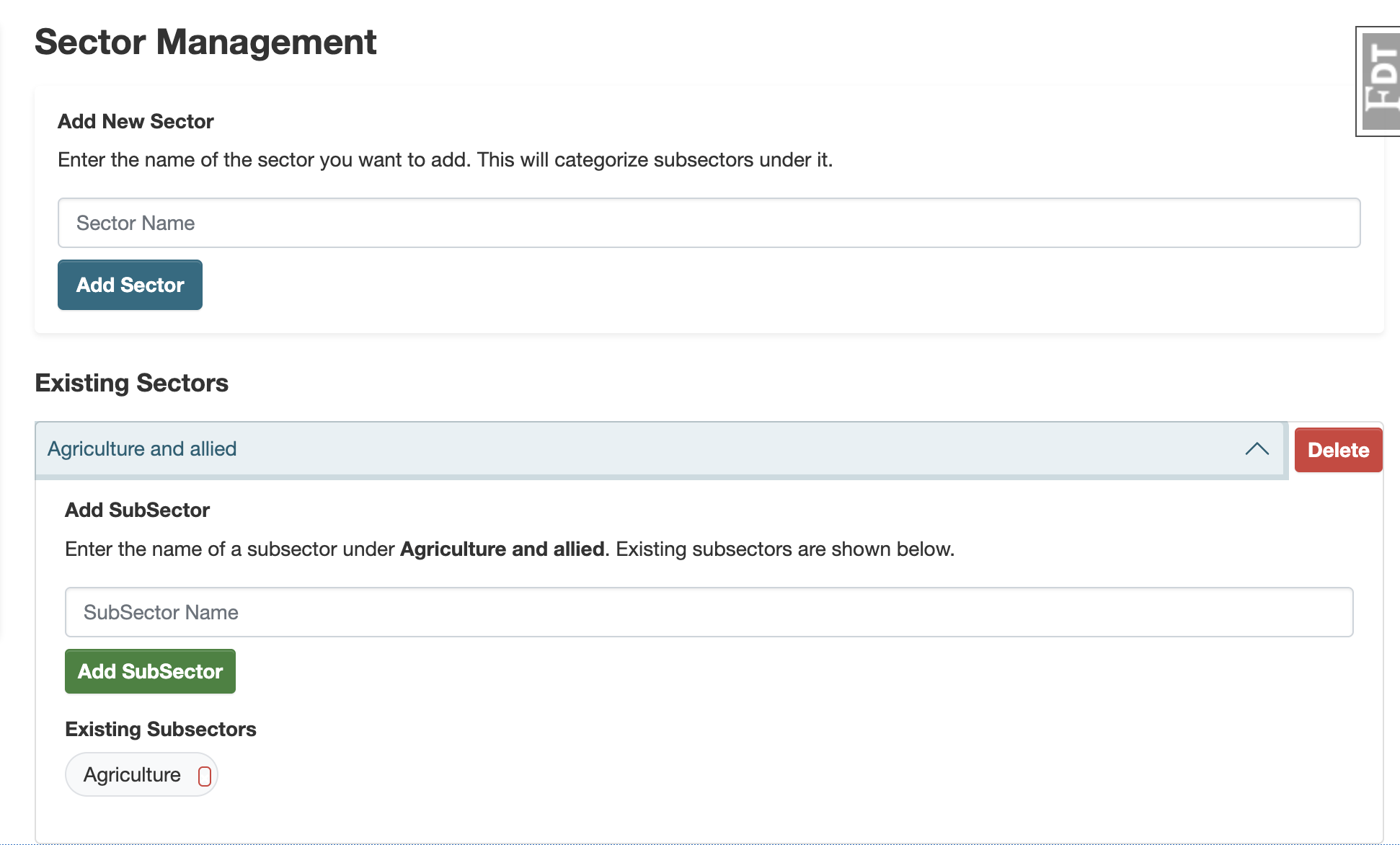
Select the primary subject area of the dataset. The available sectors are managed by the system administrator and may be updated over time. Contact your administrator or visit the Sector Management page (admin access required) if a required sector is missing.
Sub Sector *
The Sub Sector field is automatically updated based on the selected Sector. Only relevant options will be displayed. These subsectors are also managed administratively and may vary. If no suitable sub sector exists, select Others or Not Applicable if available, or request the administrator to add a new one.
Category
Optional grouping label used for additional internal classification.
Temporal Information
Frequency
Indicate how often the dataset is updated.
Available options:
- Daily
- Weekly
- Monthly
- Quarterly
- Half Yearly
- Annual
Reference Period
Specify the time period covered by the dataset using From and To dates.
Published Date
Select the date when the dataset is published on the portal.
Data Release Date
Enter the official date when the data was released by the department.
Geographic Classification
Geography / Jurisdiction *
Select the administrative level that the dataset covers.
Available options:
- State
- District
- Corporation
- Municipality
- Taluk
- Panchayat
Based on your selection, additional location fields will automatically appear. For example:
- Selecting District will display a District selector.
- Selecting Municipality will display District and Municipality selectors.
- Selecting Panchayat will display District, Block, and Panchayat selectors.
Data Granularity *
Granularity defines the level of detail in which the data is prepared.
Available options depend on selected Geography:
If Geography is State:
The Granularity options will be- State
- District
- Taluk
- LSG
If Geography is District:
The Granularity options will be- District
- Taluk
- LSG
If Geography is Corporation, Municipality, or Panchayat:
The Granularity options will be- LSG
If Geography is Taluk:
The Granularity options will be- Taluk
Select the level that matches how your dataset is structured.
Ownership and Responsibility
Data Type
Select the appropriate type:
- Primary – Data generated and maintained by your department.
- Secondary – Data published on behalf of another organization.
Data Owner *
Enter the name of the department or authority responsible for maintaining the dataset.
Maintainer Email *
Enter the official contact email for dataset-related communication.
Adding Data (Resource Section)
After completing metadata, click “Next: Add Data”. You can add data using one of the following methods:
1. Upload
Use this option to upload datasets directly from your system. Supported file formats may include CSV, Excel, JSON, or other structured formats.
- Click Upload.
- Select the file from your computer.
- Ensure the file follows the required template format.
- Click Save to upload the resource.
2. Link
Use this option when your dataset is already hosted externally. You can provide:
- A direct file URL (e.g., CSV, Excel, JSON).
- An API endpoint.
The system will fetch data from the provided link. Ensure the URL is publicly accessible and valid.
3. Table Designer
The Table Designer allows you to create and manage structured datasets directly within the platform without uploading a file.
This option is mainly used for time-series data appending, where data needs to be added periodically (daily, weekly, monthly, etc.).
- Create custom fields (columns) for your dataset.
- Define data types (text, number, date, etc.).
- Add validation rules for required fields.
- Append new records over time without re-uploading the entire dataset.
This method is ideal for regularly updated datasets such as production data, reports, monitoring indicators, or statistics.
Access Restriction Level *
Defines who can access the resource.
Available options:
- Public – Accessible to everyone, including non-logged-in users.
- Registered Users – Accessible only to users who are logged in.
- Any Organization Members – Accessible to members of any organization on the platform.
- Same Organization Members – Accessible only to members of the organization that created the dataset.
- Allowed Users Only – Accessible only to specifically selected users.
Best Practice: Select Public unless the resource is restricted.
Allowed Users
If Allowed Users Only is selected, specify the individual users who should have access to this resource.
Only the selected users will be able to view or download the data.
Format
Select the file format of the resource (e.g., CSV, Excel, JSON).
Ensure the selected format correctly represents the uploaded file or linked data source.
If no format is selected, the system will automatically detect and select the format based on the uploaded file or linked data source.
After verifying all information, click “Finish” to complete dataset creation. Ensure all details are correct before submission.